How to Consign Parts to JLCPCB from Mainland China
Last updated on Sep 09, 2026
Note
If you need to consign parts to JLC from Mainland China (excluding Hong Kong, Taiwan, and Macao), please refer to the following detailed instructions and precautions.
1. Search for and Select Components to Consign
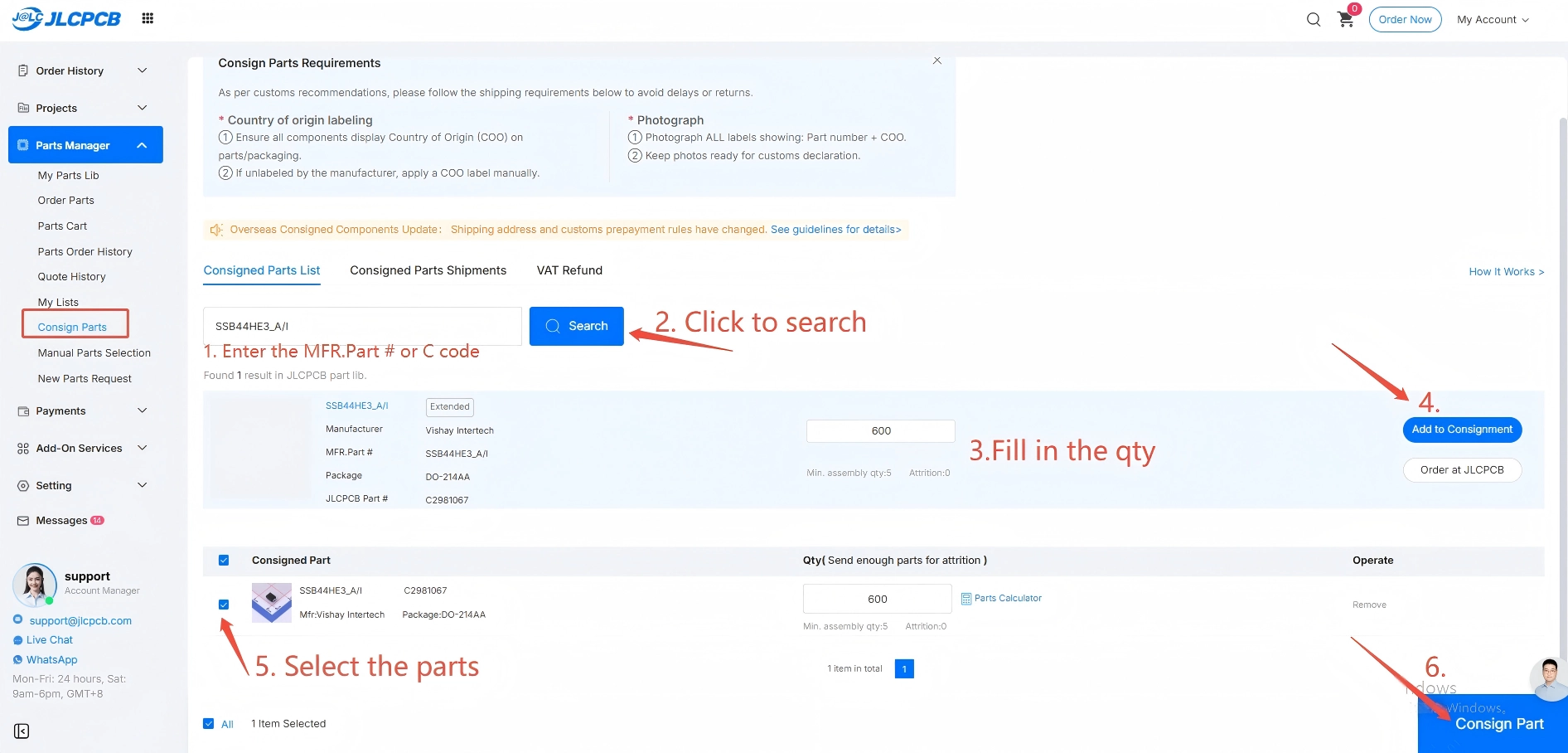
- Log in to the JLCPCB website and go to Parts Manager > Consign Parts.
- Enter the component's MFR.Part # or JLCPCB Part # (C-code), then click Search.
- Enter the quantity you wish to consign and click Add to Consignment.
- Select the component(s) in the consignment list, then click Consign Part in the bottom-right corner.
Note
When selecting components, please double-check that the part number and package match the components you are shipping. An incorrect package may affect SMT placement and soldering during PCBA manufacturing.
2. Ship Components from Mainland China
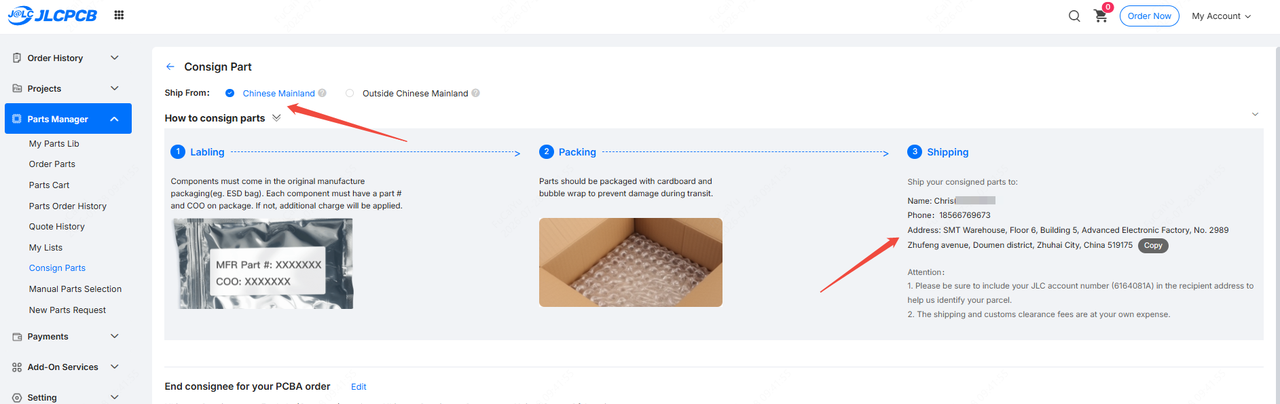
For components shipped to JLCPCB from Mainland China (excluding Hong Kong SAR, Taiwan, and Macau SAR), select Chinese Mainland as the shipping channel.
2.1 Register Components for Consignment
2.1.1 Packaging Requirements and Recipient Address
1. After completing the steps in Section 1, you will be redirected to a new page. Select Chinese Mainland as the shipping channel.
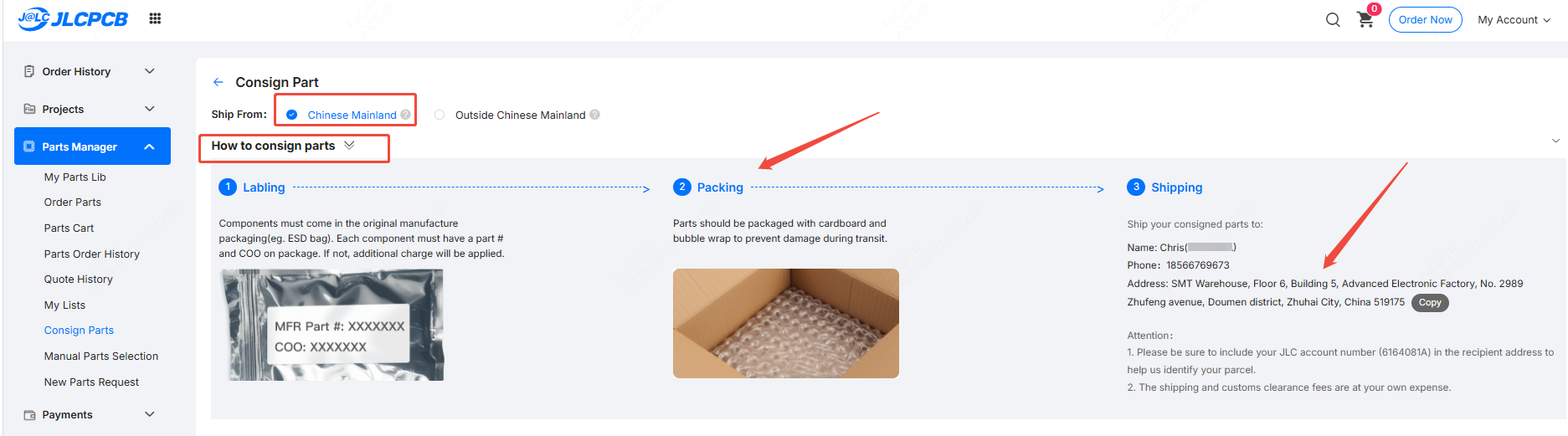
2. Click How to consign parts to view the packaging requirements, as well as JLCPCB's recipient name and shipping address.
Note
For shipments from within Mainland China, the receiving address is JLCPCB's Zhuhai warehouse.
For shipments from outside Mainland China, the receiving address is JLCPCB's Hong Kong warehouse.
Please make sure the shipping channel you select matches the correct warehouse — otherwise your components cannot be received into inventory.
The image below shows the receiving address for components shipped from Chinese Mainland.
Note
If your components are shipped from outside Mainland China, please refer to the Overseas Component Consignment User Guide to complete shipment submission and obtain the correct receiving address.
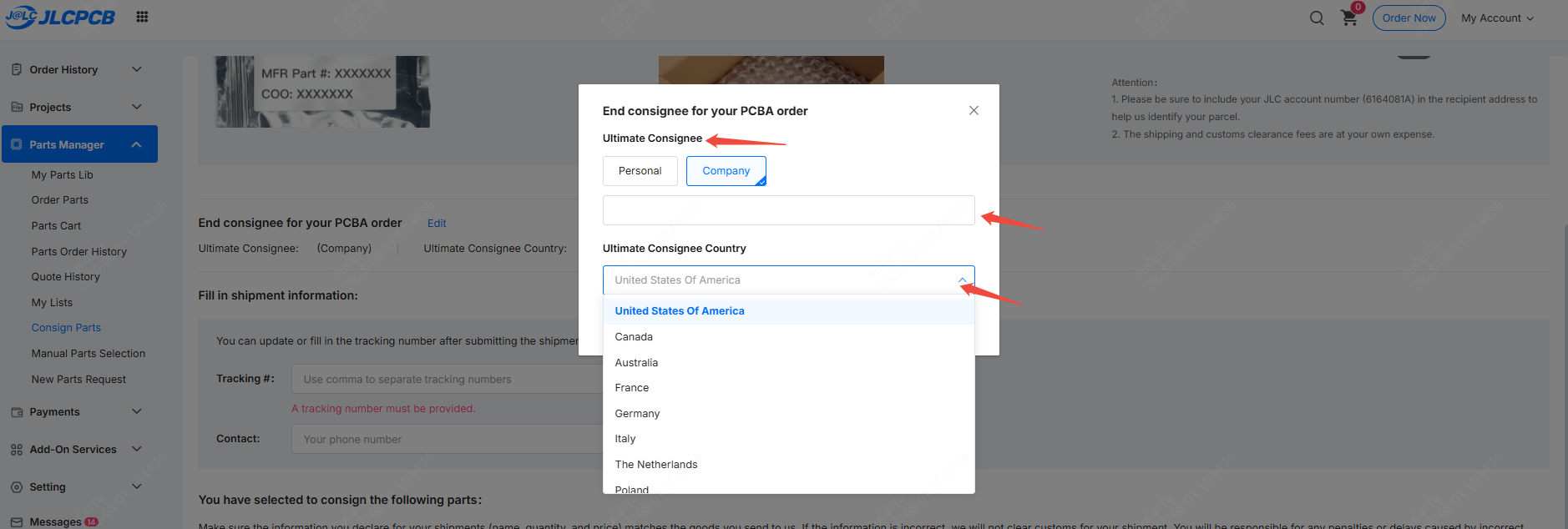
2.1.2 Enter Consignee Information
Due to internal risk control and compliance requirements, you will need to complete the End Consignee field for your PCBA order.

2.1.3 Enter Shipment Information
1. Enter the tracking number for your shipment. If your package has already been shipped, please make sure to enter the correct tracking number to ensure your components are received smoothly. If your package has not yet shipped, you may add the tracking number later, once your order has been approved.
2. Enter your contact name and phone number. Please complete this carefully so that JLCPCB can reach you promptly if any issues arise.

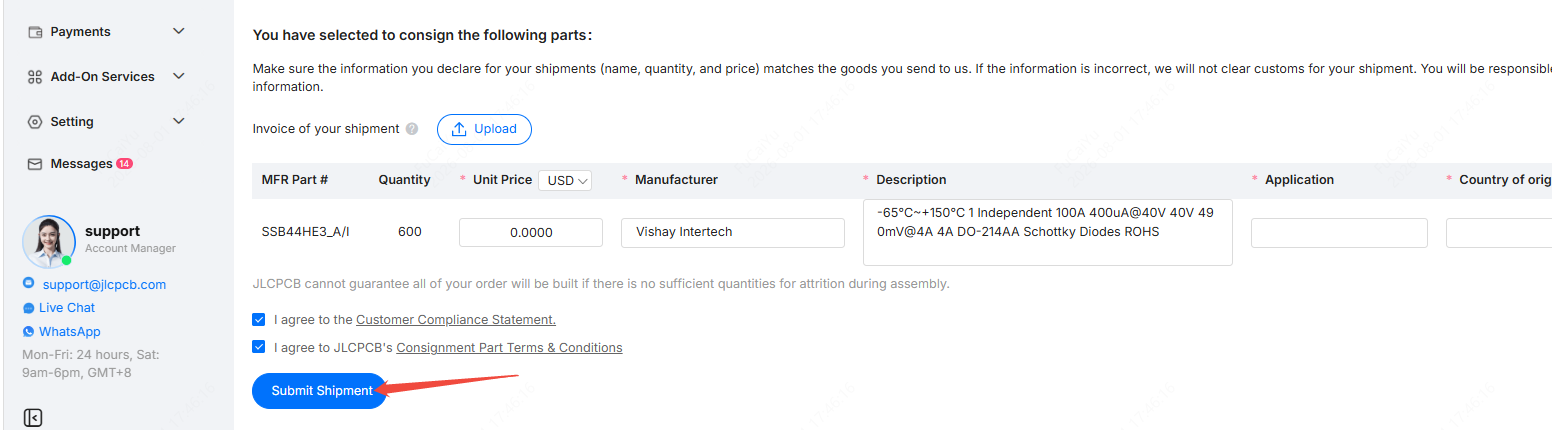
2.1.4 Enter Component Details and Upload Invoice
1. Upload the purchase invoice for your components. Failure to provide a valid purchase invoice or uploading incorrect documents may result in longer review times and delayed warehouse processing.

2. Complete the following fields as prompted:
- Unit Price
- Manufacturer
- Description
- Application
- Country of Origin
- Unit Weight/gram
Note: Fields marked with an asterisk (*) are required. Fields without an asterisk may be left blank.

2.1.5 Submit for Review
1. Once all component information has been entered, click Submit Shipment.
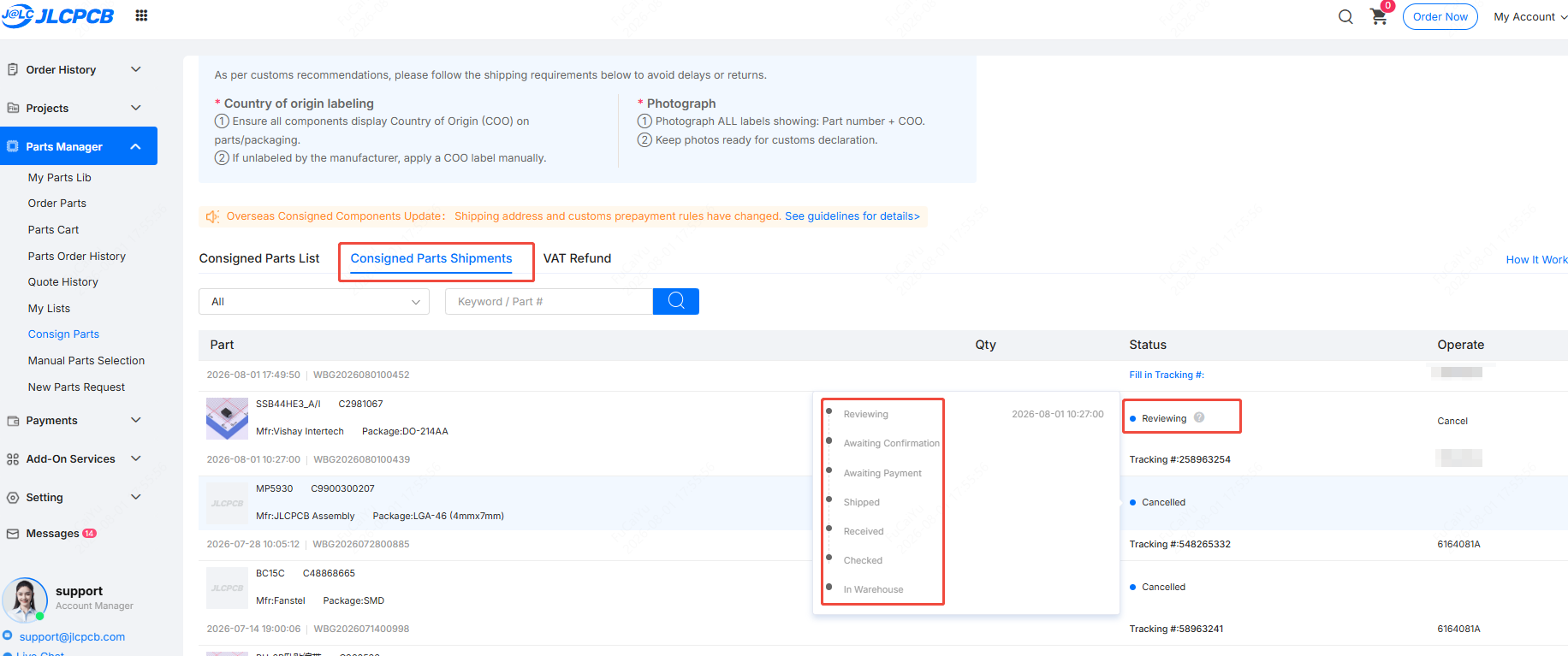
2. You can track the status of your submitted order under the Consigned Parts Shipments list.
There are eight possible statuses:
- Reviewing – Price under review.
- Awaiting Confirmation – Pending customer confirmation.
- Awaiting Payment – For components shipped from within Mainland China, no payment is required at this stage; you may ignore this status.
- Shipped – In transit.
- Received – Package received.
- Checked – Components checked.
- In Warehouse – Components received into inventory.
- Cancelled – Order cancelled.
2.2 Component Price Review
JLCPCB reviews the price of submitted components within 2 business days. When submitting your order, please be sure to upload a purchase invoice and enter the unit price as the actual price you paid.
1. If a component's price is consistent with market value, or is supported by a purchase invoice, it will pass review, and the order status will change to Shipped (In transit).
(If you did not enter a tracking number when submitting your order, you can click Edit at this stage to add one — components cannot be received into the warehouse without a tracking number.)

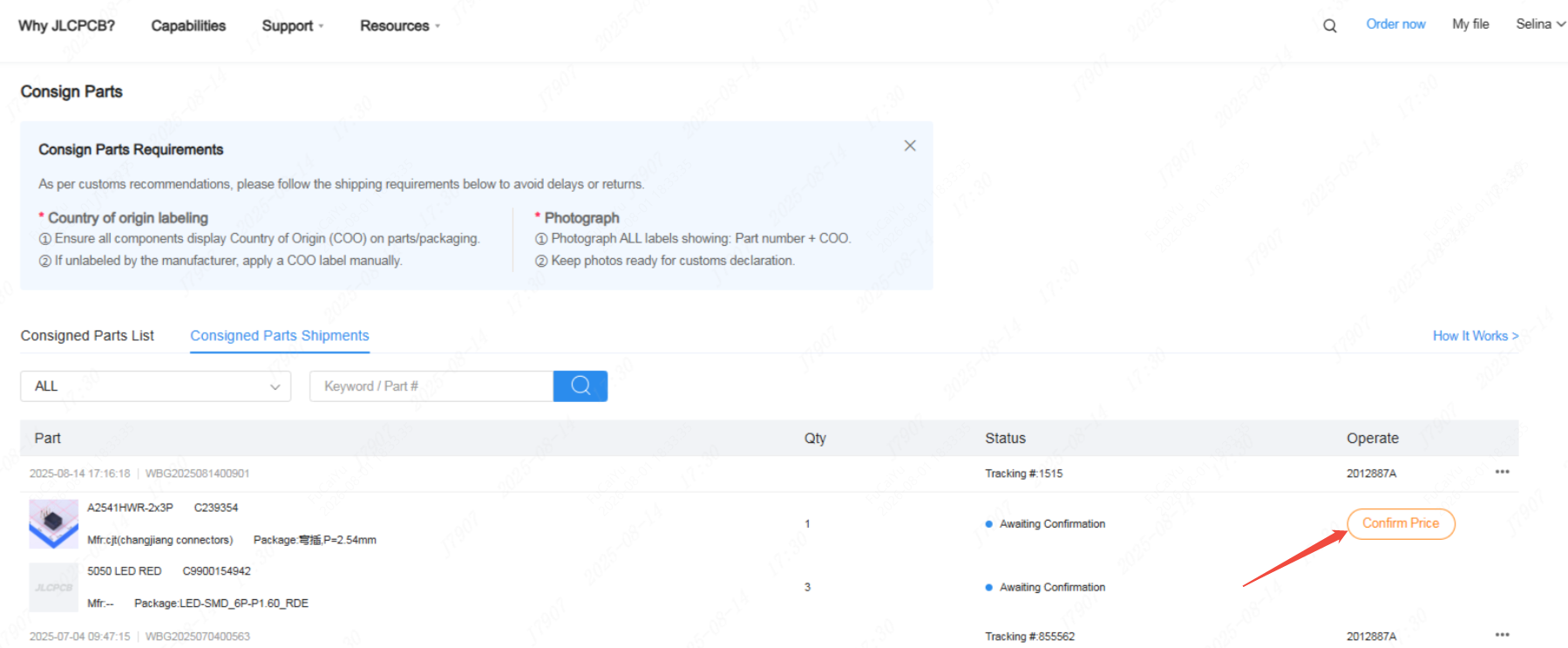
2. If no purchase invoice is uploaded, or the price is clearly inconsistent with market value, the order will not pass review, and a Confirm Price button will appear on the order.
2.2.1 Price Pending Customer Confirmation
When the price review fails, customers will receive an email notification from JLCPCB.
You can also find the Confirm Price button under Consigned Parts Shipments
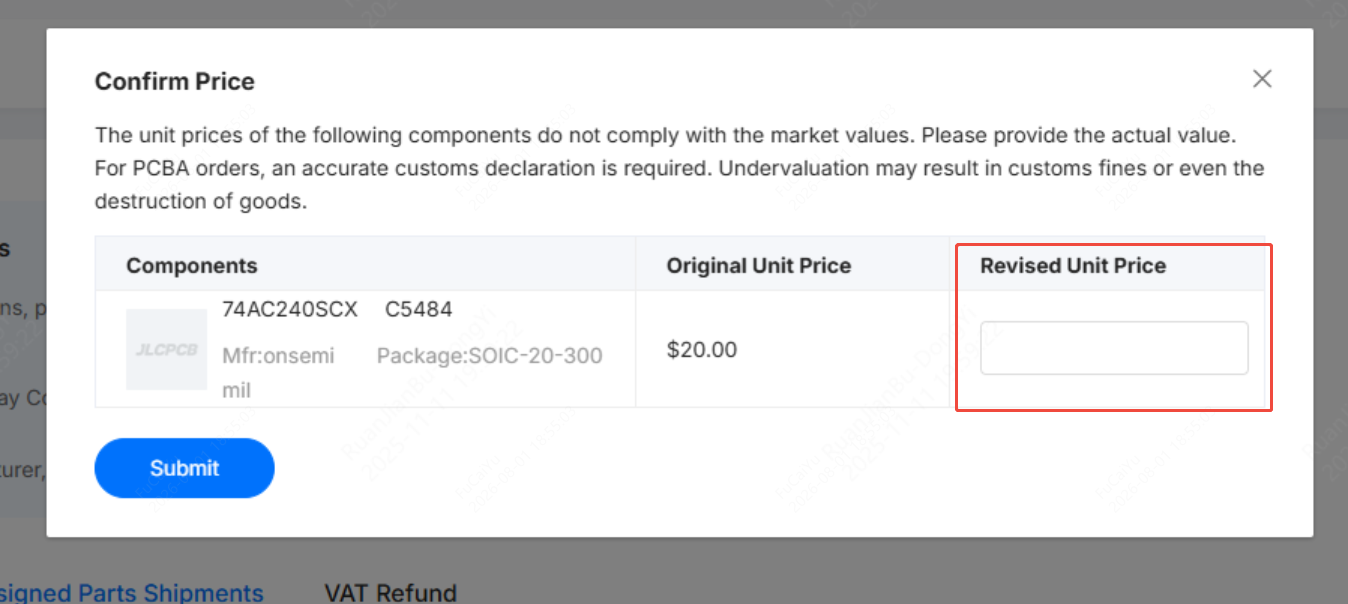
Click Confirm Price to open the price confirmation window.
The window will display:
- Original Unit Price
- Revised Unit Price
2.2.2 Re-Review of Component Price
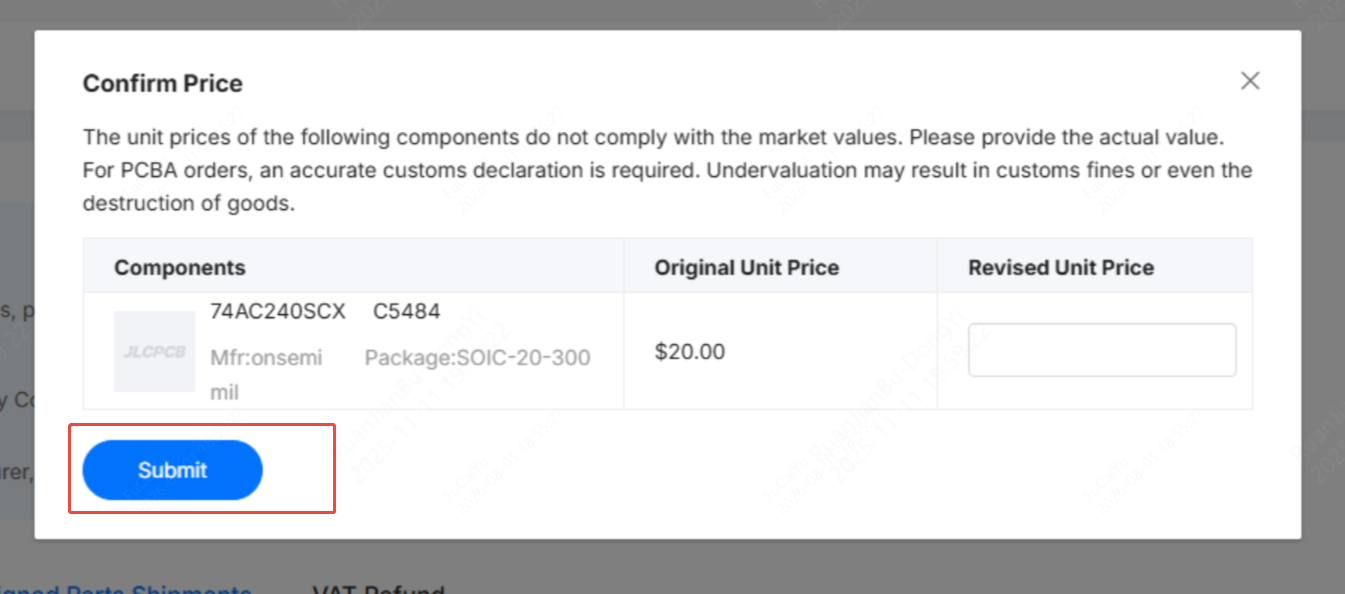
After you revise the price and click Submit, JLCPCB will review it again. If the price passes review, your order proceeds to the next step. If not, the process described in Section 2.2.1 will repeat.
2.2.3 Edit the Shipment Tracking Number
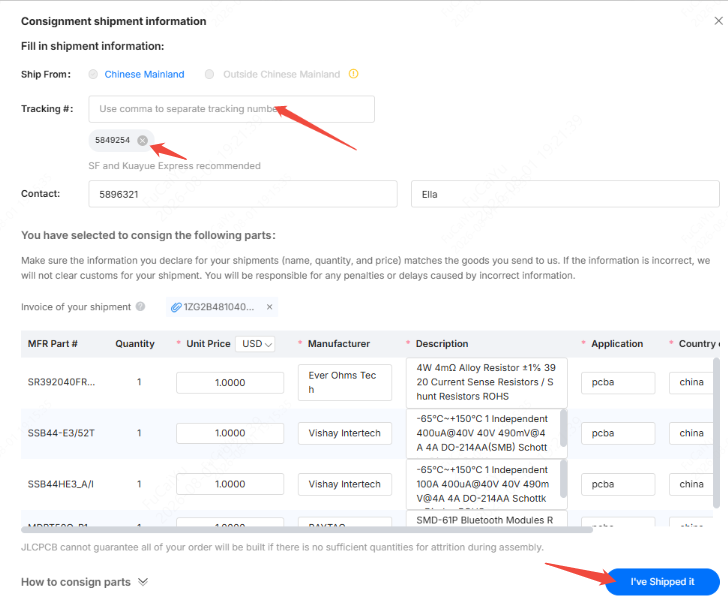
Once you have submitted your consignment order, wait for the order review to be completed. You can then update the tracking number as follows:
- Go to the Consigned Parts Shipments list and click Edit.
- Enter the new tracking number and delete the original one.
- Click I've Shipped it to complete the update.

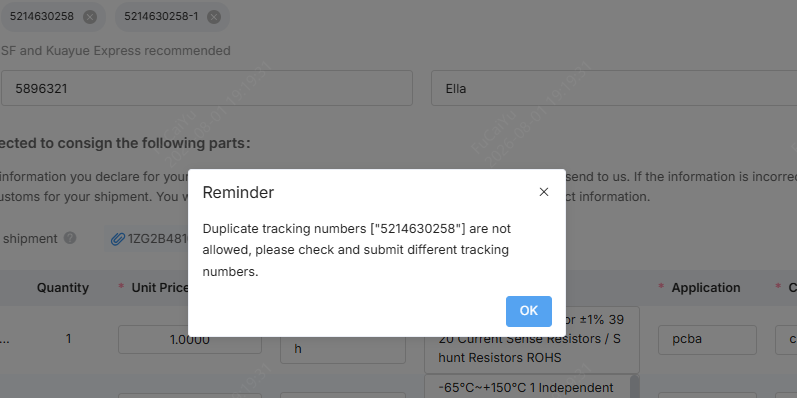
If the system indicates that the tracking number has already been used or is a duplicate, add "-1", "-2", "-3", and so on after the original number before submitting (be sure to delete the original tracking number first).


3. Cancel a Consignment Order
While an order is in Reviewing, Awaiting Confirmation, or Shipped status, you can cancel it by going to Consigned Parts Shipments > Operate > Cancel. If your package has already been received by JLCPCB and you wish to cancel the order, please contact support@jlcpcb.com.

Picking Up Consigned Components from JLCPCB
1. Pickup Handling Fee
If you do not plan to use JLCPCB's assembly service, we do not recommend consigning components to JLCPCB, as all components shipped to JLCPCB are intended solely for use in assembly orders.
If you choose to pick up your components yourself, JLCPCB will charge an inventory holding fee and a pickup service fee.
For components shipped from Chinese Mainland:
- Fewer than 20 component types: USD 30 service fee
- More than 20 component types: USD 30 service fee + Additional USD 1 per extra component type
2. Pickup and Delivery Methods
JLCPCB provides two pickup options:
Option 1: Customer Pickup
Customers can collect components from the designated JLCPCB location.
Option 2: JLCPCB Shipment
Available only within Chinese Mainland. Components will be shipped by courier with freight collected upon delivery.
After pickup or shipment completion, JLCPCB will deduct the corresponding inventory quantity from the warehouse system.
Important Compliance Notice:
Customers are strictly prohibited from exporting components under JLCPCB's company name. JLCPCB reserves the right to pursue legal responsibility for any violation.
Note: For the pickup handling fee and delivery methods applicable to components shipped from overseas, please refer to Overseas Component Consignment User Guide