Common BOM / CPL Matching Issues and Explanations
Last updated on Sep 09, 2026

File Upload Page Errors
I. “Parameter Error” Message
You may first send the files to us for system testing so we can determine whether the issue is caused by the network environment.
1. If we can upload the files successfully
This indicates the issue is likely caused by local settings, such as browser configuration, language settings, or computer system settings.
Recommended solutions:
- Switch to a different browser
- Use browser incognito/private mode
- Change the system or browser language to English
2. If the same error occurs on our side
Please further check whether your file format and data entries are correct.
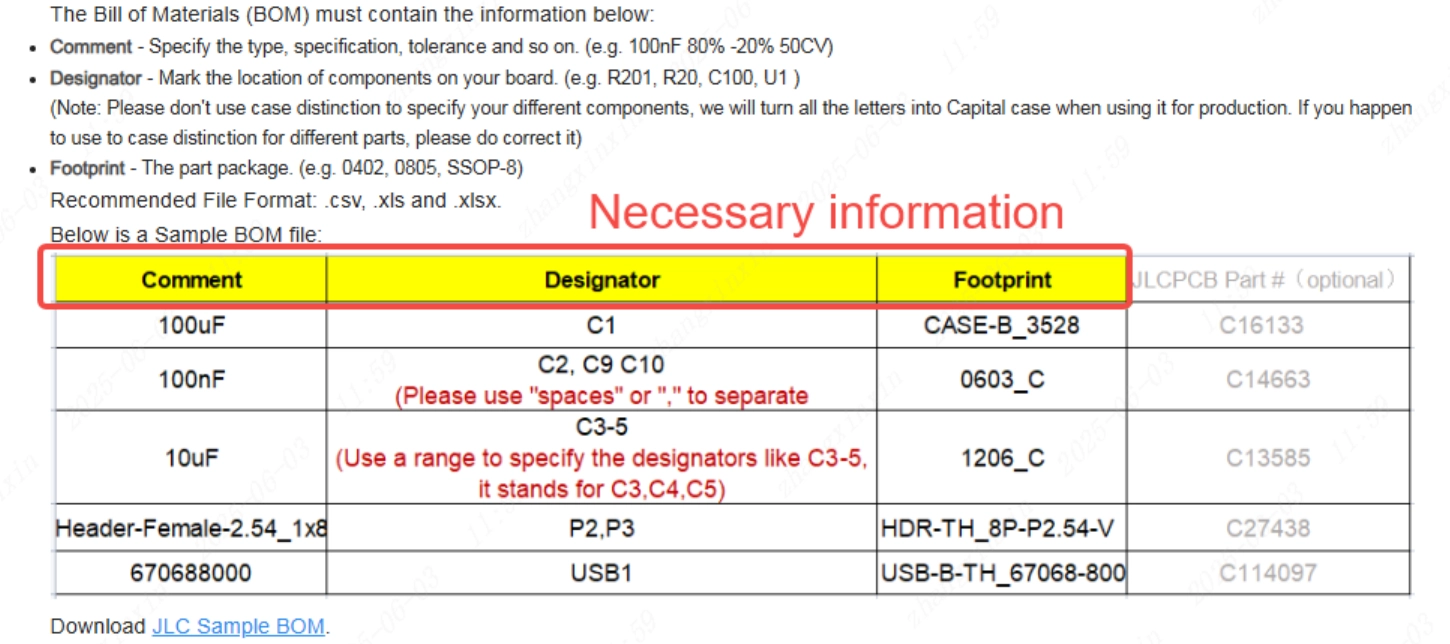
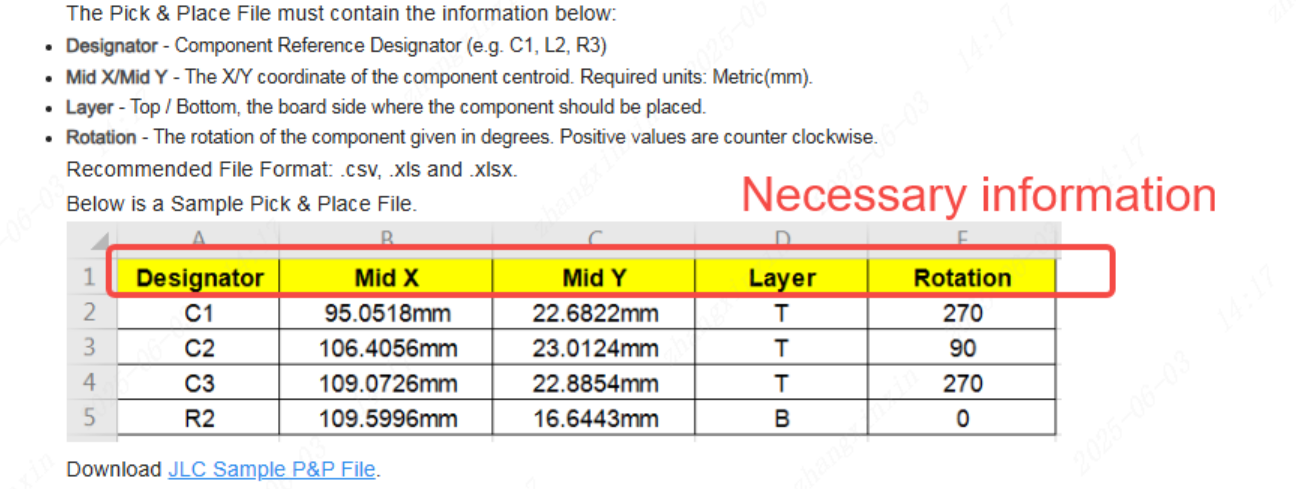
Refer to the official standard formats below:
- BOM format: https://jlcpcb.com/help/article/bill-of-materials-for-pcb-assembly
- CPL format: https://jlcpcb.com/help/article/46-pick-place-file-for-pcb-assembly
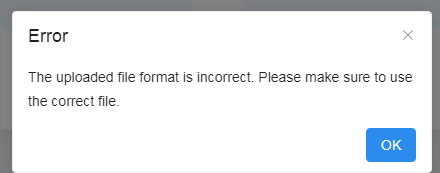
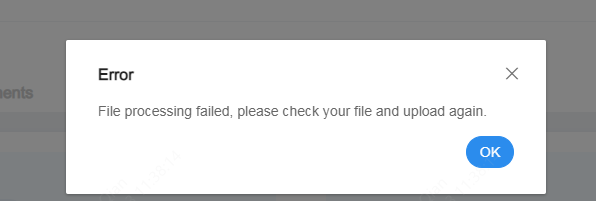
II. “The Uploaded File Format Is Incorrect” / “File Processing Failed” Message
This error is usually caused by incorrect file formatting, invalid data entries, or special characters in the file name. Please revise your files according to the standard formats.
Additionally, you may refer to the following guidance to check for potential abnormalities in your files:
Recommendations for BOM / CPL File Information
- BOM format:https://jlcpcb.com/help/article/bill-of-materials-for-pcb-assembly
- CPL format: https://jlcpcb.com/help/article/46-pick-place-file-for-pcb-assembly
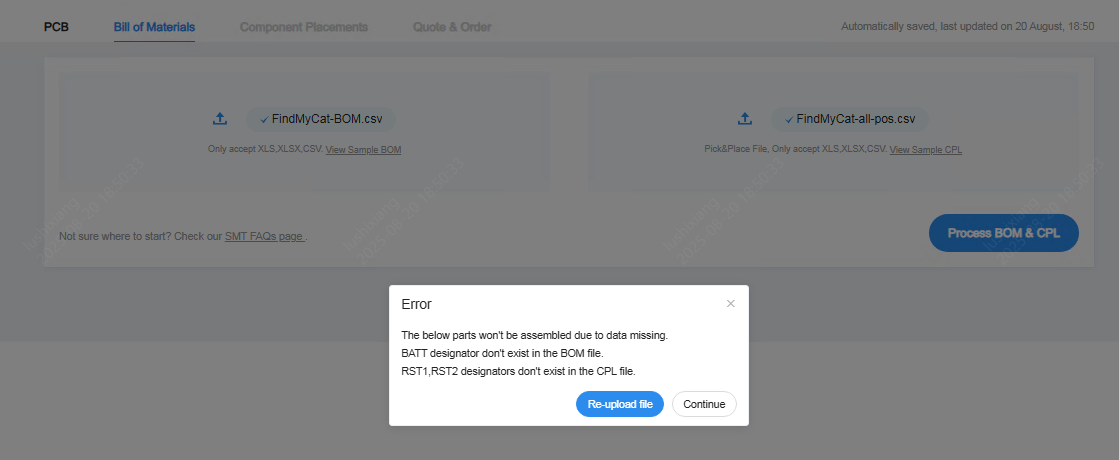
III. Inconsistent Reference Designators Between BOM and CPL
If reference designators do not match between the BOM and CPL files:
1. If the unmatched reference designators are intended to be not placed, please click “Continue”.
2. Otherwise, please modify the files and re-upload them.
Matching Page Errors
I. “Shortfall” Notification
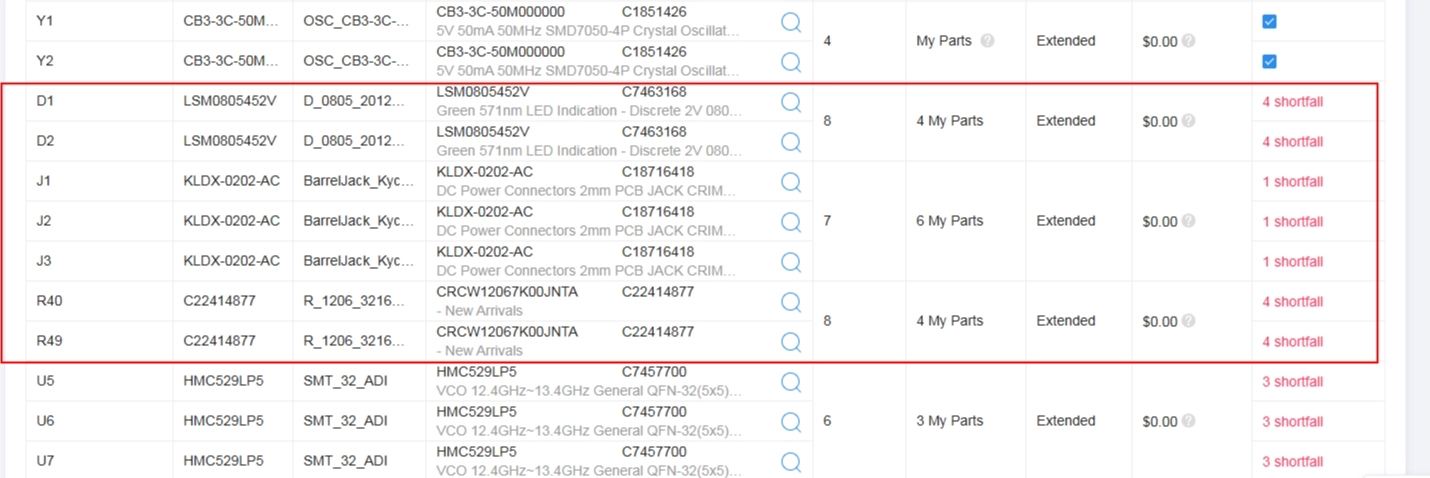
1. Insufficient Inventory in JLCPCB Parts Library
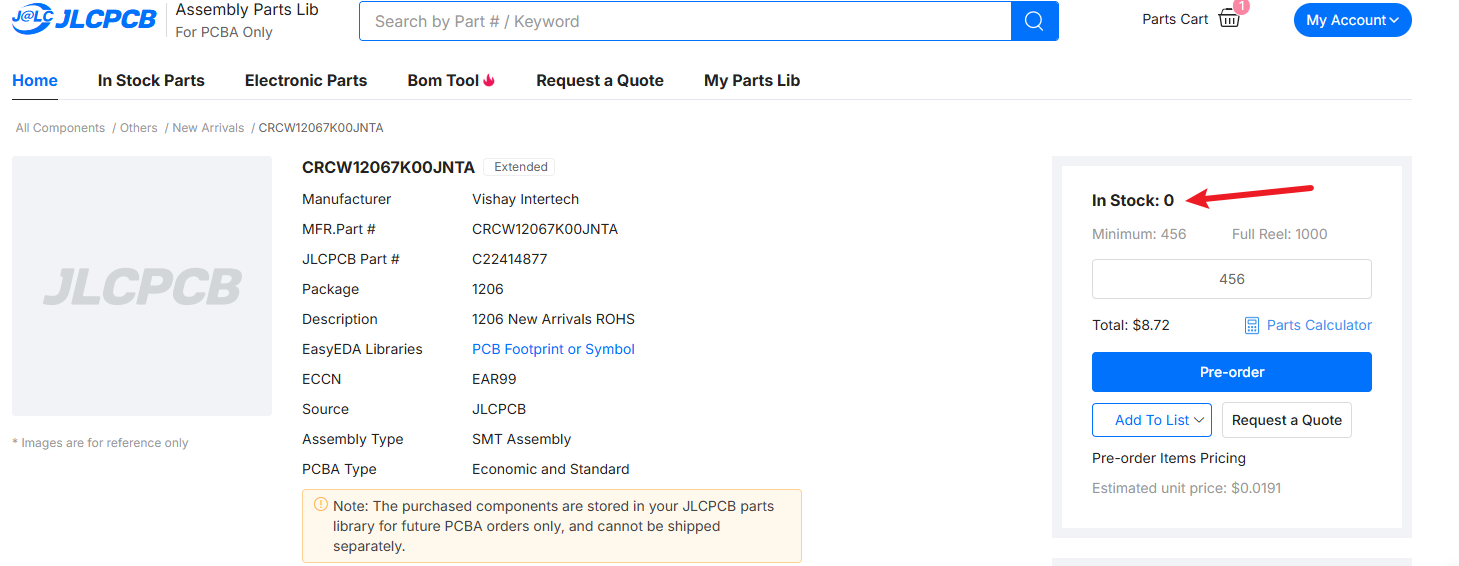
Recommended solutions:
- Select an alternative part with sufficient stock
- Use Pre-order, Global Sourcing, or Consigned Parts services, then place the PCBA order once the parts are in stock
Service links:
- Pre-order Service: https://jlcpcb.com/help/article/what-is-jlcpcb-parts-pre-order-service
- Global Sourcing Service: https://jlcpcb.com/help/article/how-to-use-jlcpcb-global-sourcing-parts-service
- Consigned Parts Service: https://jlcpcb.com/help/article/how-to-consign-parts-to-jlcpcb
2. Insufficient Inventory in Your Private Parts Library
The available quantity in your private inventory does not meet the required placement quantity.
Possible solutions:
- Replenish component inventory
(Note: only inventories that can be mixed with the existing stock are allowed; for example, Pre-order stock cannot be mixed with Global Sourcing or Consigned Parts)
- Reduce the total placement quantity of the order
- Select alternative parts with sufficient inventory
3. Shortage Caused by Loss Allowance or Minimum Placement Quantity
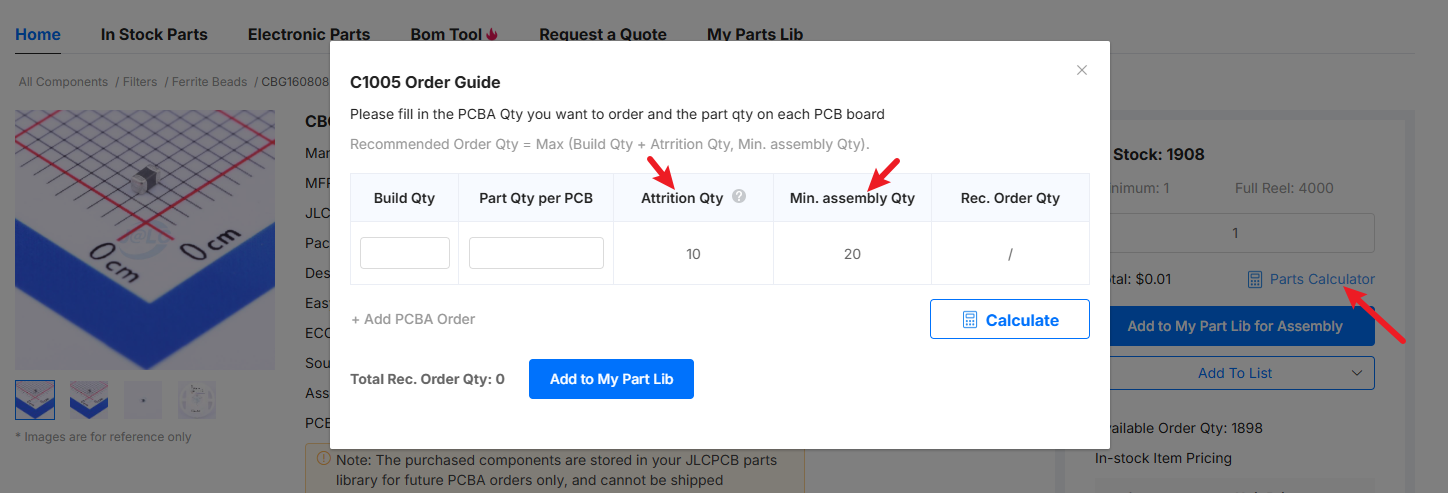
Minimum placement quantity requirements or loss allowances may cause the available inventory to be lower than the required placement quantity.
Possible solutions:
- Select alternative parts with sufficient stock
- Contact customer support to confirm whether these parameters can be adjusted
4. Component Data Not Synchronized
If component data has not been synchronized, the system may fail to match your inventory.
Please contact customer support to resolve this issue.
II. Explanation of Yellow Exclamation Mark Warnings
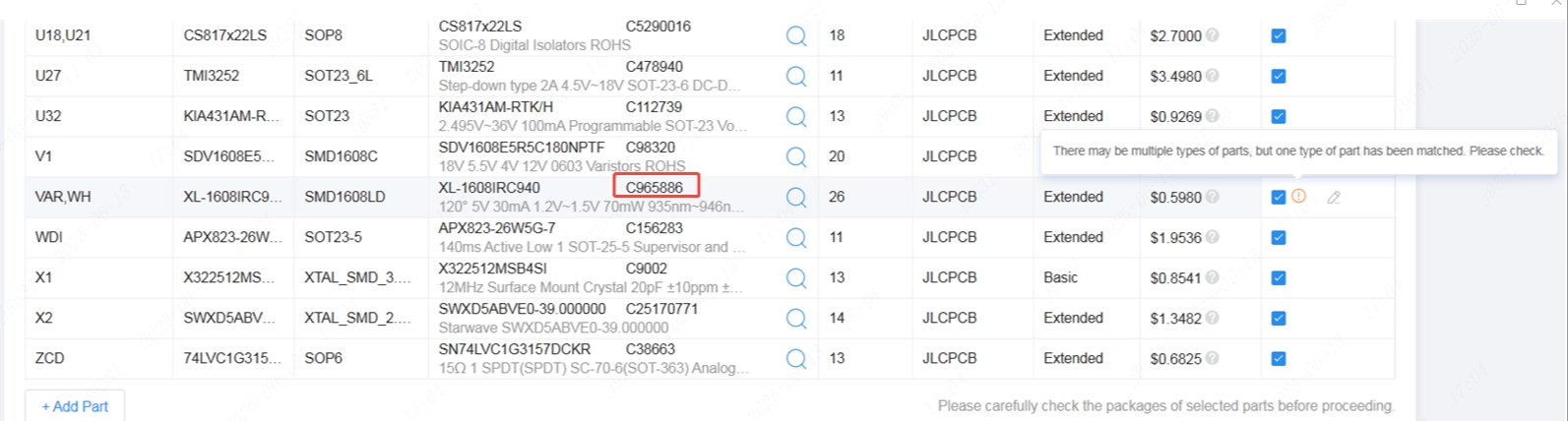
Components marked with a yellow exclamation mark require your confirmation.
You may hover the mouse over the exclamation mark to view detailed prompts. After confirming there is no issue, you must manually check/select the component. Only checked components are considered selected.
1. Component Model Verification
If the matched component model does not exactly match the model parsed from the BOM (exact match, case-insensitive, ignoring spaces), the system will display a warning and uncheck the component, prompting you to confirm whether the matched model is correct.

2. Package Verification
If the system determines that the package of the matched component is inconsistent with the package specified in the BOM, a warning will be shown and the component will be unchecked, prompting confirmation.
3. Same Component Used Across Multiple Rows
When the same component is matched across multiple BOM rows, a warning will appear and the component will be unchecked, requiring confirmation of the matching result.

4. Multiple Component Types in a Single Row
The system determines component types based on the reference designator prefix.
If multiple component types are detected within the same row, a warning will be displayed for confirmation.
5. Special Handling Components
Orders containing special-handling components will be subject to manual review after submission.
If PCBA customized services are required, additional fees will apply. The review result will be communicated via email.

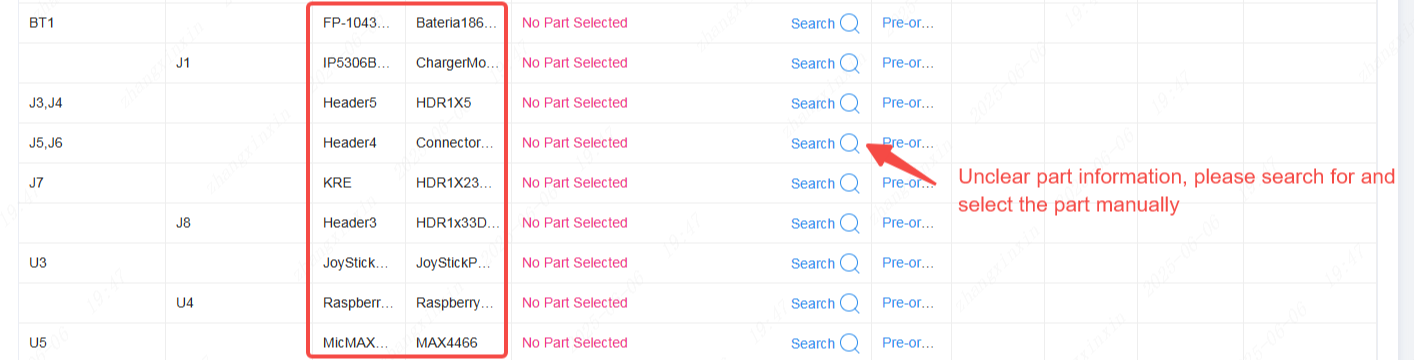
III. “No Part Selected” Message
The component information in the BOM is insufficient or unclear, and the system is unable to match a corresponding part.
Recommendation: Search and manually match components using the manufacturer part number (MPN) or (C-code).
IV. “Standard Only” Message
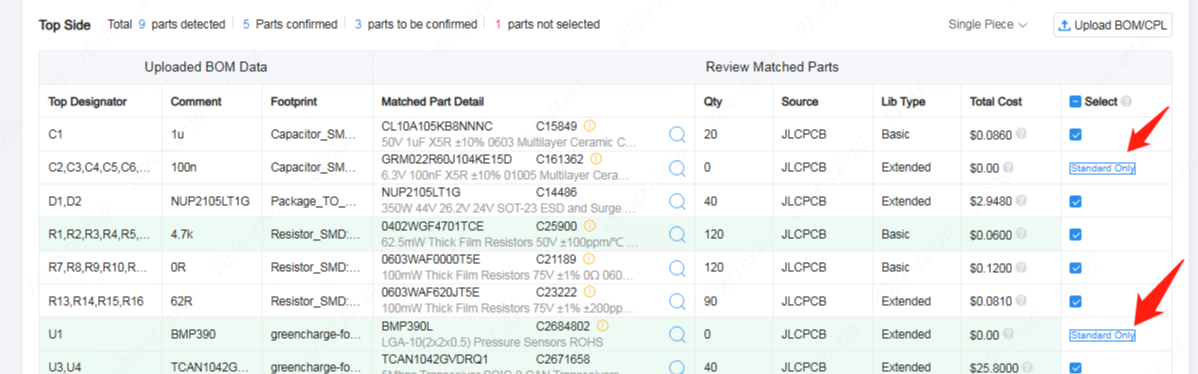
You selected Economic PCBA as the order type, but the order contains components that are exclusive to Standard PCBA orders.
Possible solutions:
1. Switch the order type to Standard PCBA
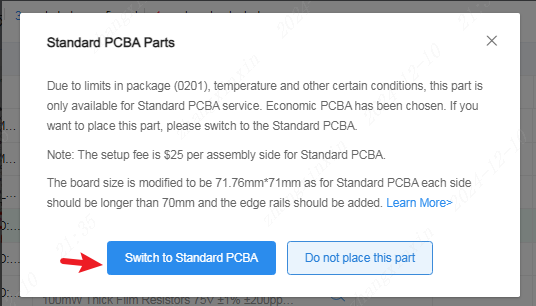
2. Select “Do not place this part” to leave the standard-only components unplaced
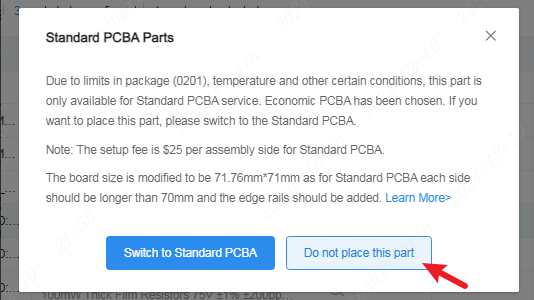
3. If you have questions regarding standard-only components, please contact customer support for verification
V. “Repeated Designator” Message

Please revise your files to ensure:
- Each reference designator appears only once
- The minimum coordinate spacing between different reference designators is greater than 0.2 mm
VI. Panelization File Notes
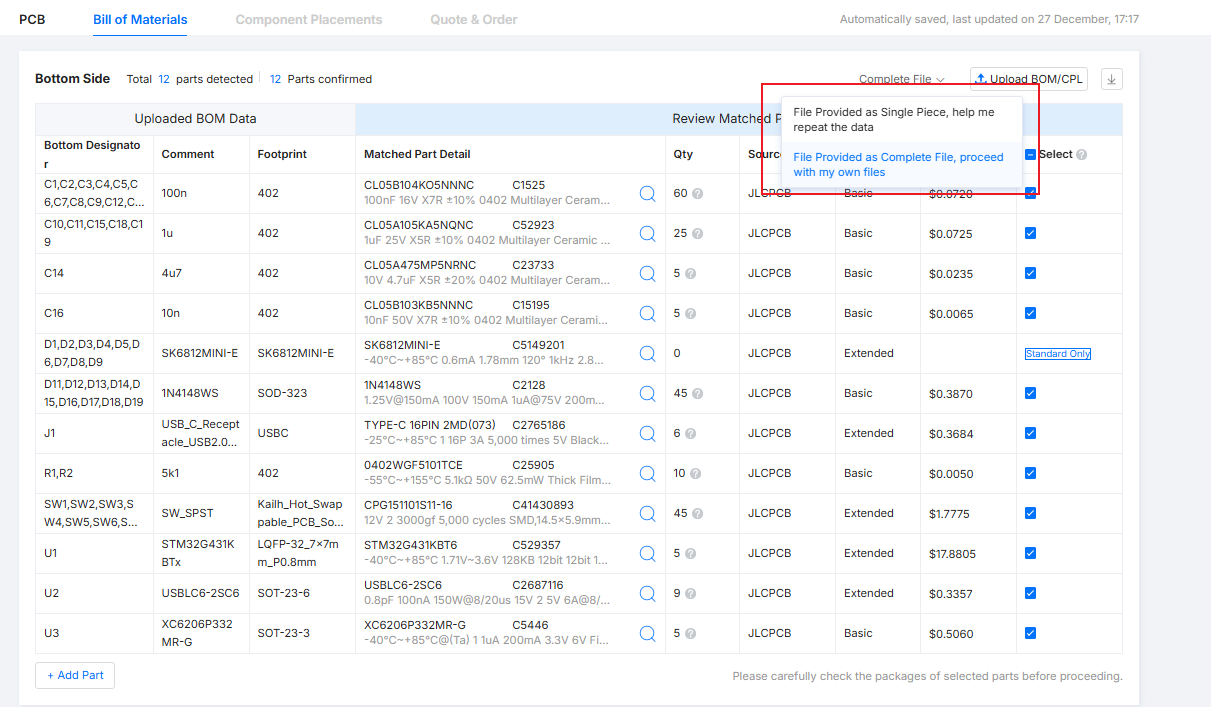
1. “Single Piece, please help me repeat the data”
Your BOM and CPL files are for a single PCB.
If you select panelization when placing the order, you must choose this option so the system can automatically replicate the data and calculate the total component quantity based on panel count and placement quantity.
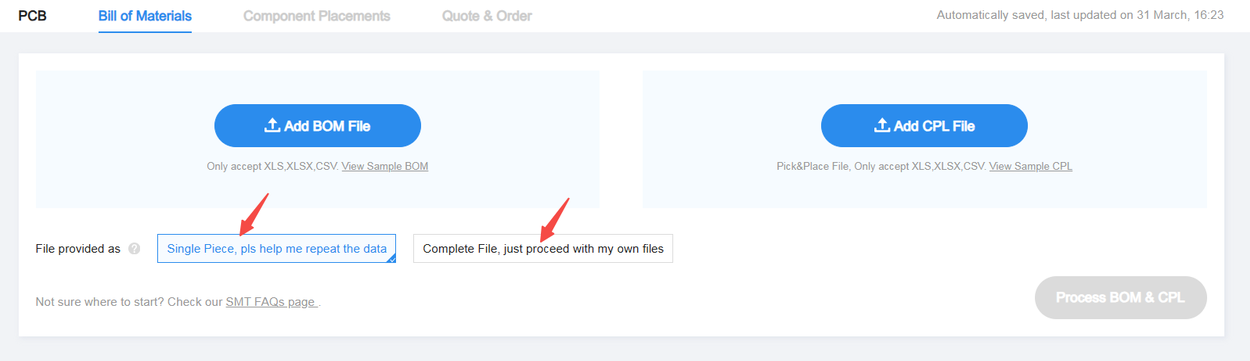
2. “Complete File, just proceed with my own files”
If your files already contain complete panelized data, select this option.
The system will calculate the total component quantity by multiplying the placement quantity only.