How to Generate Gerber and Drill Files From KiCad 9 [Updated]
Last updated on Sep 24, 2026

Note
This guide shows you how to generate Gerber and Drill files in KiCad 9 and package them for JLCPCB’s PCB manufacturing. You will work entirely inside the PCB Editor's Plot and Generate Drill Files dialogs, using the exact settings JLCPCB's CAM system expects.
- Software: KiCad 9.0.4.
- Demo project: RoyalBlue54L-Feather, an 8-layer board.
KiCad 9 Gerber and Drill File Requirements for JLCPCB
Everything JLCPCB needs from a KiCad 9 export, in one place.
| Item | JLCPCB requirement | Where you set it in KiCad 9 |
|---|---|---|
| Gerber format | RS-274X with Protel filename extensions | Plot format: Gerber, plus Use Protel filename extensions |
| Coordinate format | 4.6, unit mm (KiCad default) | Coordinate format in Gerber Options |
| Drill file format | Excellon | Generate Drill Files dialog, Excellon radio button |
| Drill units | Millimeters | Units: Millimeters |
| Drill origin | Absolute | Origin: Absolute |
| Zeros format | Decimal format (recommended) | Zeros: Decimal format (recommended) |
| Copper layers | F.Cu and B.Cu, plus every inner layer your stackup defines | Include Layers list |
| Solder mask | F.Mask and B.Mask | Include Layers list |
| Silkscreen | F.Silkscreen and B.Silkscreen | Include Layers list |
| Solder paste | F.Paste and B.Paste, needed for stencil and SMT assembly orders | Include Layers list |
| Board outline | Edge.Cuts, drawn as one closed contour | Include Layers list |
| Upload format | One .zip or .rar archive, English filenames | Your file manager |
Before You Start: Check Manufacturing Capabilities and Run DRC
Before generating the manufacturing files, it’s important to ensure that your PCB design follows JLCPCB’s manufacturing capabilities and design rules.
These capabilities include minimum track width, spacing, via sizes, drill diameters, and other critical parameters. You can always find the up-to-date specifications on the JLCPCB Capabilities page.
By setting the correct design rules in KiCad before exporting, you can avoid errors during production and ensure a smooth fabrication process.
Note
Run DRC: Use Inspect > Design Rules Checker, or the Run DRC button in the bottom-right corner of the Plot dialog.
Clear every unresolved error before plotting. The Output Messages panel at the bottom of the Plot dialog should read "Errors 0" and "Warnings 0". Some warnings can be ignored if you are confident about your design, but error does not.
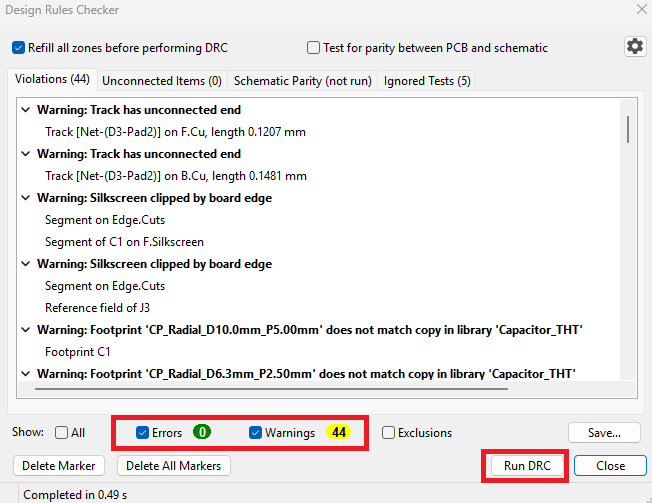
Figure. Running DRC in KiCad 9
Step 1: Open the Gerber Plot Dialog in KiCad 9
Open your board in the PCB Editor, then go to File > Fabrication Outputs > Gerbers (.gbr).
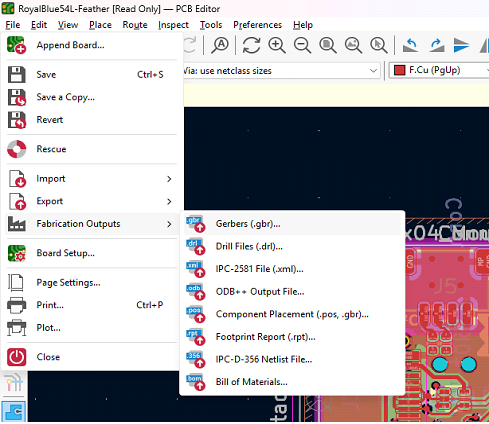
Figure: Opening the Gerber Plot dialog in KiCad 9
Note: If the title bar shows [Read Only], close the read-only session and reopen the project with write access, or KiCad cannot write the plot files.
Step 2: Set the Gerber Output Folder in KiCad 9
At the top of the Plot dialog, confirm Plot format is set to Gerber, then fill in the Output directory field.
Type a folder name such as gerbers or production, or click the folder icon to browse.
Tip: Keep the folder name in plain English with no spaces. JLCPCB's uploader requires English filenames inside the archive.
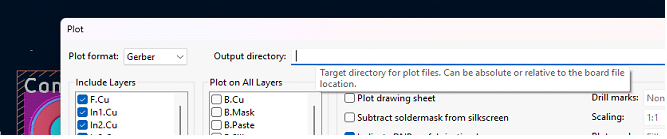
Figure: Setting the Gerber output folder in the KiCad 9 Plot dialog
Step 3: Select the Layers to Plot for Gerber Export
The Include Layers list on the left of the Plot dialog controls which layers are written as Gerber files. Tick exactly the layers your board needs.
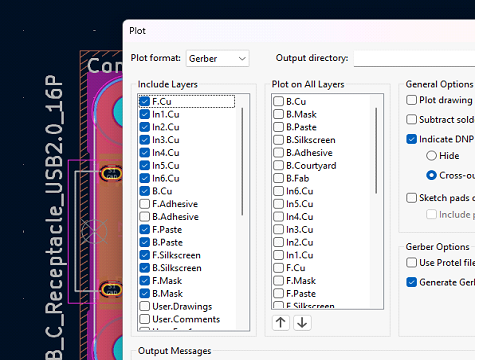
Figure: Selecting the layers to plot for a JLCPCB Gerber export in KiCad 9
The screenshot above shows an 8-layer demo board, which is why In1.Cu through In6.Cu appears in the list.
KiCad only lists the inner layers that your own stackup actually defines, so a 2-layer project will not show them at all.
Select from the two sets below according to your layer count.
Required Layers for a 2-Layer Board
Tick these seven layers for a standard 2-layer bare board:
- F.Cu and B.Cu — front and back copper.
- F.Mask and B.Mask — solder mask openings.
- F.Silkscreen and B.Silkscreen — the printed legend.
- Edge.Cuts — the board outline. This one is not optional: without it JLCPCB has no board profile and the order is held.
Add F.Paste and B.Paste as well if you are ordering an SMT stencil or SMT assembly. They define the stencil apertures. On a bare-board order, they are simply ignored, so including them does no harm.
Note: Layer names can be changed in File → Board Setup → Board Editor Layers. A renamed layer still plots to the same Protel extension, so a renamed In1.Cu is still written as .G1. If your list does not match the names above, check that dialog before assuming a layer is missing.
Inner Copper Layers for 4-Layer, 6-Layer and 8-Layer Boards
For a multilayer board, tick F.Cu, B.Cu and every inner copper layer your stackup defines, in addition to the mask, silkscreen and Edge.Cuts layers above:
- 4-layer board: In1.Cu and In2.Cu.
- 6-layer board: In1.Cu through In4.Cu.
- 8-layer board: In1.Cu through In6.Cu.
Important: Plot every inner layer, and plot them in stackup order. The inner-copper file numbering (.G1, .G2 and so on) is how JLCPCB reconstructs your stackup. A skipped inner layer produces a layer-count mismatch against the order and stops the job.
Step 4: Configure KiCad 9 General and Gerber Options
KiCad's defaults are not JLCPCB's defaults. The right-hand side of the Plot dialog holds two separate groups — General Options on top and Gerber Options below it — and you need settings from both.
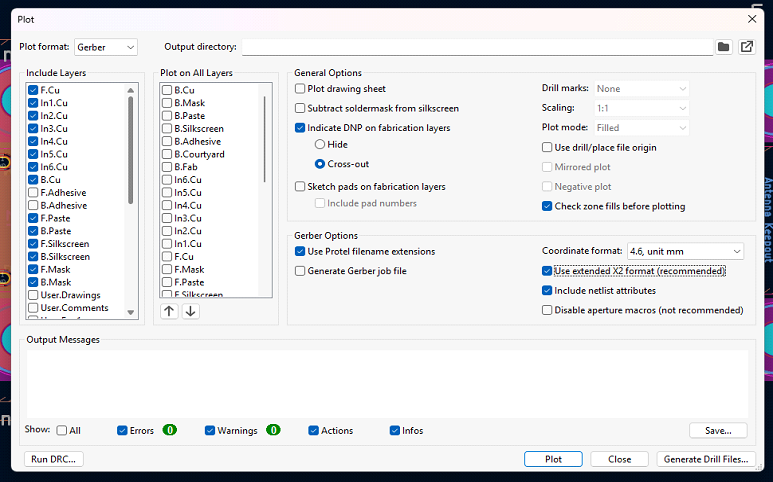
Figure: JLCPCB-recommended General Options and Gerber Options in the KiCad 9 Plot dialog
- Check zone fills before plotting — Tick to regenerate copper pours before creating Gerbers.
- Drill marks — Set to None since hole locations come from the Excellon drill file.
- Scaling — Set to 1:1 for accurate manufacturing dimensions.
- Plot mode — Select Filled to generate solid copper features.
- Use Protel filename extensions — Tick for standard layer names recognized by PCB manufacturers.
- Use extended X2 format — Tick to embed layer metadata in the Gerber files.
- Include netlist attributes — Tick to improve DFM checks for shorts and opens.
- Click Plot — Verify Errors = 0 and Warnings = 0 before proceeding.
Step 5: Generate Excellon Drill Files in KiCad 9
Gerbers describe copper and mask; they carry no hole data.
Click Generate Drill Files… in the bottom-right corner of the Plot dialog to open the drill export.
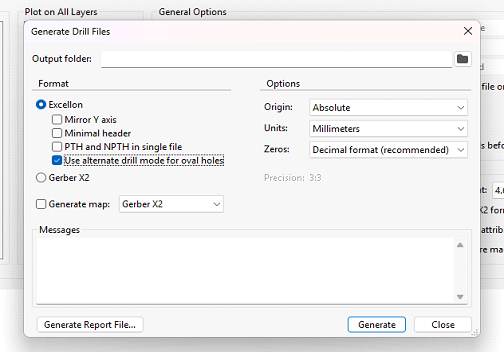
Figure: Excellon drill file settings for JLCPCB in KiCad 9
Set the dialog exactly as follows:
- Drill file format — Select Excellon as the standard drill format used by PCB manufacturers.
- Use alternate drill mode for oval holes — Tick to generate accurate slots and oval holes.
- Origin — Set to Absolute to match the Gerber coordinate system.
- Units — Select Millimeters.
- Zeros — Choose Decimal format (recommended) to avoid zero-suppression errors.
- PTH and NPTH in single file — Leave unticked
- Output folder — Use the same folder as the Gerber files to keep all manufacturing files together.
Click Generate. KiCad writes <project>-PTH.drl and <project>-NPTH.drl into the output folder. Close the drill dialog, then close the Plot dialog.
Step 6: Verify Your KiCad 9 Gerber and Drill Files
Never upload an export you have not looked at.
Open the whole set in a Gerber viewer — JLCPCB's online Gerber viewer renders the files as soon as you upload the archive on the order page.
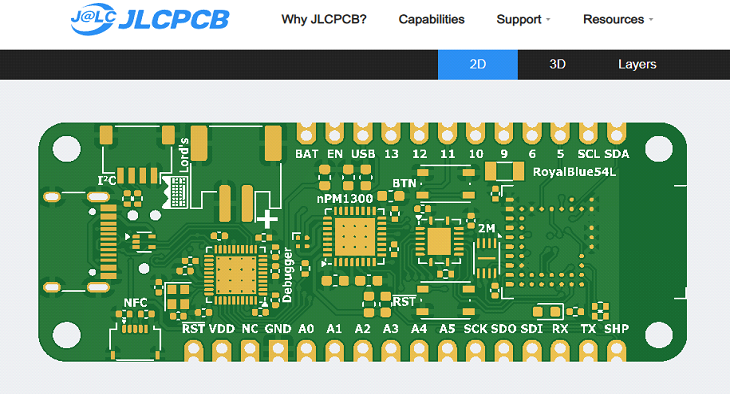
Figure: Verifying the exported KiCad 9 Gerber and drill files in JLCPCB's online Gerber viewer
Then set the layer count, dimensions, thickness, solder mask color, and surface finish to match the board you designed, and place the order.
FAQs
Which layers do I need to select for a 2-layer board in KiCad 9?
Tick F.Cu, B.Cu, F.Mask, B.Mask, F.Silkscreen, B.Silkscreen and Edge.Cuts. Add F.Paste and B.Paste only if you are ordering an SMT stencil or assembly. You will not see any In1.Cu style layers, because a 2-layer stackup does not define them.
Do I need to zip my Gerber files before uploading to JLCPCB?
Yes. The uploader accepts a single .zip or .rar archive only. Put every Gerber file and both .drl drill files into one archive, with English filenames and no special characters.
Should I use Protel filename extensions in KiCad 9?
Yes. It produces the.GTL, .GBL, .G1, .GTS, .GTO, .GTP and .GM1 names that JLCPCB's CAM system recognizes automatically. Files exported without it still contain valid Gerber data, but the long descriptive .gbr names are more likely to need manual layer assignment.
Does JLCPCB need PTH and NPTH in a single drill file?
No. Leave PTH and NPTH in a single file, unticked. KiCad's separate -PTH.drl and -NPTH.drl files are accepted as they are, and the split keeps plated and non-plated holes unambiguous.